How To Accept an Educator Invitation

The article below will guide you through the process of accepting your emailed invitation to join your child care program. This will allow you to complete your consent form and join the staff roster within I-LEAD, a requirement of all caregivers.

Important: Each I-LEAD user must have their own email address that is not shared with anyone else. I-LEAD accounts are not meant to be shared or gifted as they contain personal information and training unique to each user. Failure to follow this rule may result in tangled accounts and incorrect data on consent forms that cannot be reversed. If you need help reversing an entangled consent form, contact the OECOSL Child Care Support Line at 1.800.299.1627.
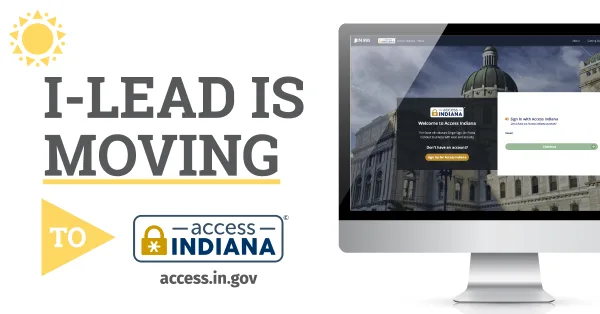
Before accepting your educator invitation, you must first have or create an Access Indiana account with the same email address to which the educator invitation was sent.
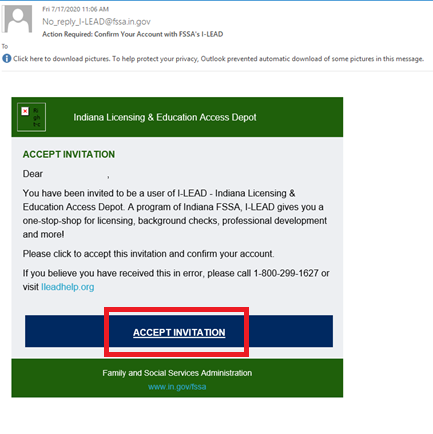
1.) New Hires/Educators: Accept the invitation sent to your email.
Note: The email comes from No_reply_I-LEAD@www.in.gov. It may be in the junk/spam folder if it is not in your inbox. Select the email with the most recent date and timestamp, and accept the invitation on a single device.
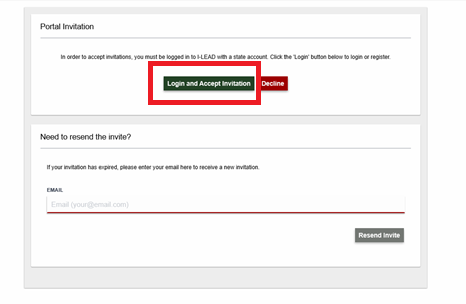
2.) Click Login and Accept Invitation.
3.) Log in to your Access Indiana account. (If you don't have an account with the same email address as your educator invitation, or you get a message that you already have an account but do not recall the password, use this step-by-step guide. Then go back to step 1 to log in from the educator invitation.)
Returning Educators: Educators who submitted consent forms I-LEAD recognizes will be acknowledged in the system. If the screen opens to a profile instead of “I am an Educator,” skip to step 7.

4.) Select your date of birth on the calendar or manually type it (MM/DD/YYYY) and the last four digits of your Social Security Number (SSN). (Note: Mobile users need to click on the month at the top of the calendar and then the year to find their birth year.) If you do not have a SSN, click I-TIN (Individual Taxpayer Identification Number). Then either enter the last four digits of the I-TIN or enter all 9s in this section. Click Submit. If there are any issues during this step on a mobile device, log in to your email on a desktop computer, and return to step 1 of this article. The process must be done from start to finish on the same device.

5.) Verify the information you entered is correct. If it is, click My Information is Correct. If not, click Cancel to go back to the previous page and make the necessary edits.

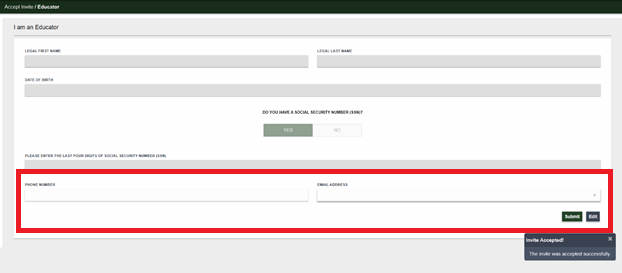
6.) Enter your phone number and email address. Then click Submit.
(Note: If the information you entered matches previous information in ILEAD, it will generate a message that "too many attempts" were made. This was likely caused by attempting to merge with existing records in I-LEAD via the "I am an Educator" button before you used the educator invitation. If you have never worked for a child care facility before nor turned in a consent form, ignore the message and enter your phone number and email address to continue.)
7.) Update the personal information and home address on your profile, then select your title. Most individuals will select “Teacher” as their title. Then, click Update Your Profile.
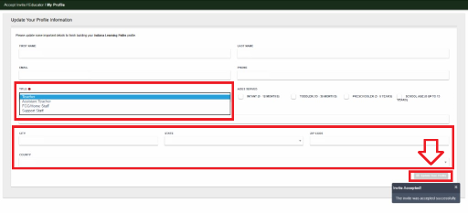
8.) If you successfully accepted your invitation, you will see your director in the Provider section. Find your consent form in the upper right-hand corner to fill out once you have your fingerprinting information.
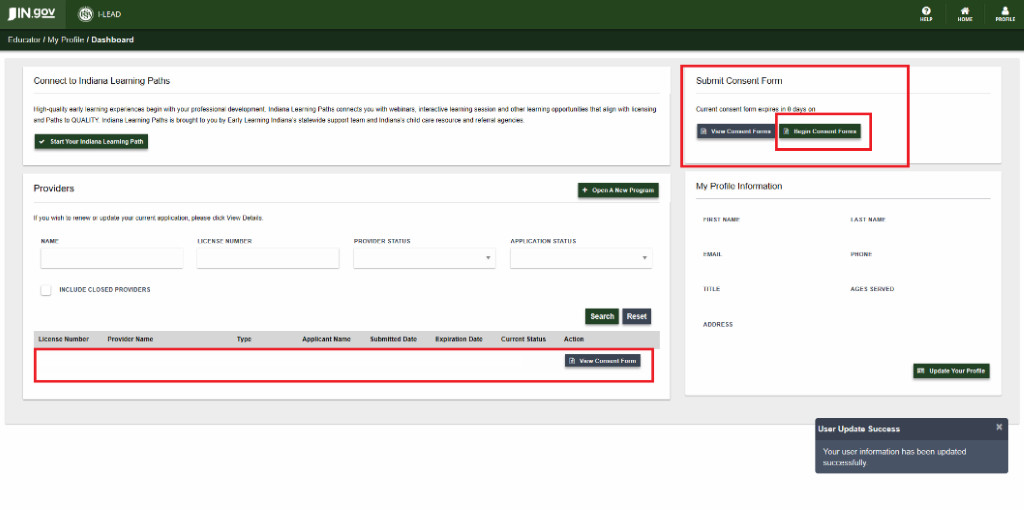
Make sure all licenses you belong to are listed before starting a consent form. If any are missing from the Provider section of the I-LEAD Dashboard, accept those first. Then do the consent form after all locations are added.
Verification Process:
If you attempt to log in from the “Action Required” email and only see the option “I am an Educator” in your I-LEAD account, the educator invitation verification process was disrupted. This could happen for several reasons, including:
- Educator did not have an Access Indiana account prior to accepting the invitation and had to create one.
- Educator had to reset their password in the middle of accepting the invitation and it disrupted the verification process.
- Educator attempted to accept an old educator invitation instead of the newest one. Old invitations are deactivated. Only invitations with a “Pending” status on the provider’s Invited Educators section can be used to log in.
- Educator attempted to accept the invitation on one device and switched to another device partway through the verification process. The verification process must be completed on a single device without any disruption.
- Educator had an Apple or HP product using Safari and Microsoft Edge. These browsers occasionally have issues loading certain aspects of the website. Switch to Mozilla Firefox as your primary browser. If you use Google Chrome, clear your cookies and cached images before proceeding with the educator invitation again.
- Educator invitation expired after the 72-hour period. The provider admin/supervisor should resend the invitation.
- Educator did not finish their profile setup before attempting to accept the invitation. If you have never had an I-LEAD account, click the Skip option when it offers to look up your past consent form and training records in the system. Then fill out the profile information using your address and personal information. Temporarily select “early childhood educator” as the role. Once you are on the I-LEAD Dashboard, go back to your email and try to log in from the educator invitation once more.
- Educator had issues entering their date of birth (Format: MM/DD/YYYY) on a mobile device. Some phones allow you to zoom out to find your date of birth. Click the month at the top of the calendar to back out to the year. Click the year at the top of the calendar so it lets you find your birth year.
- “Too Many Attempts” only appears if you tried to look yourself up using the “I am an Educator” tool more than three times when you did not yet have an account. If this appears after confirming your date of birth and SSN, scroll down and enter your phone number and the email address for your I-LEAD account.
- Educator may be duplicated in the system under multiple consent IDs. The system needs the previous records merged with the new account before accepting an invitation for a new provider. This requires technical support. Contact the OECOSL Child Care Support Line at 1.800.299.1627.
If you had a consent form open before accepting the invitation to connect to a new site, click Begin Consent Form and Restart Consent Form for the most recent data to appear.
Need Additional Help?
If you have additional questions or need guidance, contact the OECOSL Child Care Support Line at 1.800.299.1627 for assistance.