
Consent Forms


Warning: Each I-LEAD user needs their own email that isn’t shared with anyone else. I-LEAD accounts aren’t meant to be shared or gifted as they contain personal information and training unique to that user. Failure to follow this rule could result in lost trainings, tangled accounts and/or incorrect data on consent forms that can't be reversed easily. For technical support, contact 1.800.299.1627.
What's a consent Form?
Consent forms are electronic forms provider admins and educators submit on their I-LEAD accounts. They give licensing permission to check the fingerprints and background checks needed for an employee to work or reside at the child care facility.
Who Needs a Consent Form?
Anyone who works, volunteers or lives on the premises where child care is conducted will need to complete a consent form. Juveniles who assist with child care and provider admins who sign the attestation form and licensing applications are also required to complete a consent form on I-LEAD.
When Do I Need to Submit a Consent Form?
Consent forms are due:
- After a new licensing application is signed and submitted.
- When a person accepts their educator invite to a new license/child care site.
- When the fingerprints expire. (Note: Fingerprints are due every 3 years.)
- When a person’s legal name changes.
- If qualification.review@fssa.in.gov requests supporting documents to dispute a disqualification or the consent form be redone.
Note: Click either View Consent Form on the educator’s account or View Details on the provider’s Associated Educator roster to view the Fingerprint Expiration Date. If the fingerprints are going to expire soon before the consent form expires, redo the consent form with the new Applicant TCN (minus the ‘i’) for licensing to get the new Inkless Transaction Number. Once signed and submitted, the new fingerprint expiration date will be updated in the system to reflect the changes.
How Do I Get a Consent Form?
Those who have created an Access Indiana/I-LEAD account
and successfully accepted their emailed educator invites for each license will have access to a consent form on their I-LEAD Dashboards when they login. Only the provider admins of the license(s) have the ability to invite staff and connect them to each location.
Note: Don’t remove and re-invite an existing educator in an attempt to trigger a new consent form. This could create errors in the system that prevent the educator from submitting a consent form when it's due for renewal. If a consent form requires corrections, wait until midnight for the Begin Consent Form button to reappear. The most recent consent form submitted is the one that gets sent to licensing for processing. If there are concerns about a consent form, contact 1-800-299-1627 for guidance or technical support.
What Do I Need to Complete the Consent Form?
Before starting a consent form, obtain the following information and items:
- Adults: The person who is the owner of the I-LEAD account and email address will need to submit a consent form on the I-LEAD Dashboard. Since I-LEAD accounts aren’t meant to be shared, everyone will need their own account and accept their own educator invitation to connect with the licenses and receive a consent form. Collect the following items before starting the consent form:
- Your personal information (Ex: DOB, SSN, legal name, etc.).
- Any former legal names.
- Any past addresses within the last 5 years (if applicable).
- The 9-digit Applicant TCN (minus the beginning ‘i’) from the IdentoGo fingerprints receipt. Note: If the legal name on the consent form doesn’t match what’s on your ID, change the profile information before starting or continuing the consent form. Those who change their name in the profile will click Begin Consent Form and then Restart Consent Form (if applicable) afterward for the changes to show.
- Juveniles: The parent or guardian of the juvenile who is going to volunteer or work at a child care facility will need to fill out the consent form for the minor. The I-LEAD account created should be exclusively for the juvenile so they can do training and complete their consent forms and upload their background check results. Collect the following items before starting the consent form:
- The juvenile’s personal information (Ex: DOB, SSN, legal name, etc.).
- Any past addresses within the last 5 years (if applicable).
- The juvenile’s 9-digit Applicant TCN (minus the beginning ‘i’) from the IdentoGo fingerprints receipt.
- A state background check through the Indiana State Police sent by IdentoGo after the fingerprinting appointment will need to be uploaded to the Documentation section of the consent form. Note: If the legal name on the consent form doesn’t match what’s on the juvenile’s birth certificate and social security card, change the profile information before starting or continuing the consent form. Those who change the name in the profile will click Begin Consent Form then Restart Consent Form afterward for the changes to show.
Where is the Consent Form on I-LEAD?
Those who were sent an educator invite and accepted them for each license are connected and should have a Begin Consent Form on their I-LEAD Dashboard.
- New Users: If the only option available on the I-LEAD Dashboard is Need a Consent Form? and/or I am an Educator, this means your account is still a guest account. Do one of the following:
- Finish Account Setup: Some users may have only partially set up their account but never reached the profile. To bypass this section, click Skip at the top of this page and finish setting up your profile. The profile will need your home address and personal information. Select a temporary role for now, then press Update Profile. Once you reach the I-LEAD Dashboard that says, “Start your Indiana Learning Paths,” go back to the emailed invitation and try to log into it again.
- Re-try the Educator Invite: If you tried the invite but still have theI am an Educator button on your dashboard, this means the verification process was disrupted. Some common disruptions include:
- Creating the account while trying to accept the invite.
- Resetting the password.
- Splitting the login process between two devices.
- Leaving the two-step verification screen to go to the email.
- Creating the account while trying to accept the invite.
- Go back to your email inbox and login from the educator invite. Educator invites sent by your employer are good for 72 hours. You must be logged in on a single device. If the invitation expired, reach out to the provider administrator of the license to request a new invitation. Note: Make sure the no_reply_i-lead@fssa.in.gov invitation you’re logging into has the most recent date and time stamp on it. New invitations sent by the provider deactivate older invitations in your inbox.
- Returning Users: I-LEAD accounts that say Need a Consent Form? and only have an I am an Educator button are still guest accounts that aren’t connected to a child care license. If you have an old I-LEAD account with consent and training records you need on your new account, merge with your records. Once you’ve merged, if you get a message that you’re not connected to a provider or you check “View Consent Form” and a license is missing, ask your provider admin to send an educator invitation for the license(s) missing before starting the consent form via Begin Consent Form. Note: If you experience an “Almost Done” message when attempting to merge your records, contact 1-800-299-1627 for technical assistance.
Completing the Consent Form(s) on I-LEAD
1. Log in to your I-LEAD account.
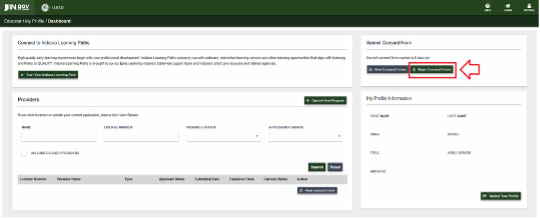
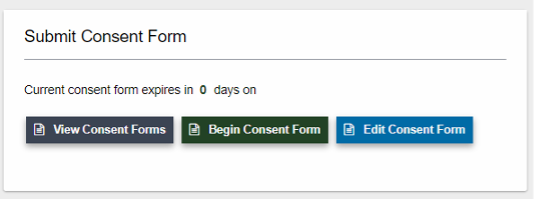
2. Click the Begin Consent Form button on your I-LEAD Dashboard to start or restart your consent form. Click Edit Consent Form to continue your progress.
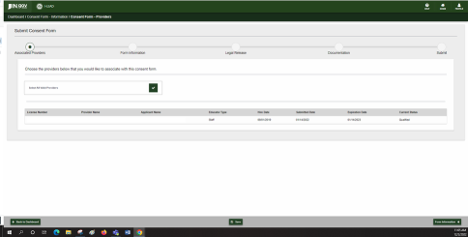
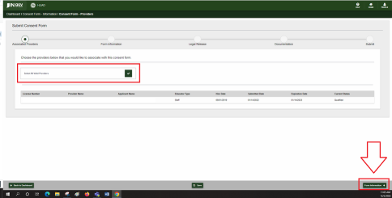
3. Associated Providers (Page 1 of 5): The Select All Valid Providers check box should automatically have a check mark at the top of the page. If not, click this box to fill it in. This will select all licenses that require a completed or updated consent form.
- Missing Licenses: If a license is missing from the list of providers you’re connected to, reach out to your provider and have them re-send an educator invitation for you to login. Then click Begin Consent Form and Restart Consent Form to show the most recent licenses in this section.
- Continue to the Next Page: If all the licenses are listed, click the Form Information button in the bottom right corner to advance to the next page.
- Mobile Users: Depending on the mobile device, there may be a green button with a white arrow pointing to the right instead of showing the Form Information button. If the button is missing or cut off from the phone screen, turn your phone on its side to enable landscape mode/full view of the screen.
4. Form Information (Page 2 of 5): Complete all available fields in Form Information. This is where most of the user’s personal information, past addresses, former names and the fingerprint number is recorded. If the name on the consent form needs to be adjusted, change the profile information before continuing. Once the profile has been updated, click Begin Consent Form and Restart Consent Form for the changes to take effect. Include all previous names (examples: maiden name or previous married names) on the consent form so if the name has changed, OECOSL will be aware of all names they need to search to find the results.
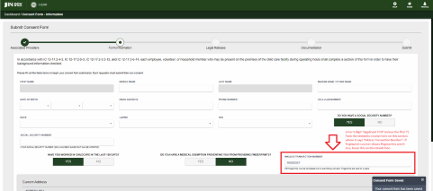
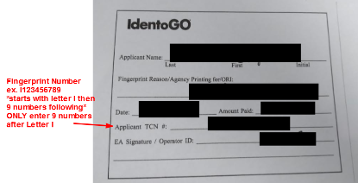
- Inkless Transaction Number: Since consent forms are now due when fingerprints are due or expire every 3 years, this section is now a required field for submission. This section is where educators should submit their 9-digit fingerprint Applicant TCN (minus the ‘i’ at the beginning of the number sequence) from the IdentoGo receipt. Adding the fingerprint receipt number here will submit a copy of fingerprints to licensing for processing.
- Autofill Warning: Be careful when filling out the form. Some browsers, like Google Chrome, give users the option to select pre-populated information from a previous form filled out on another website. However, this can cause issues where the educator’s name and other fields may be mistakenly modified with incorrect data from a previous form. If you select pre-populated data through a drop-down, double-check the entire form information page to verify if it changed anything it shouldn’t have. If it did, click Home, then Begin Consent Form and Restart Consent Form to refresh the consent form and enter the correct information.
5. Legal Release (Page 3 of 5): Once all fields in Form Information are completed, click Legal Release
to move on. Type in your name where it says Electronic Signature on the release form to allow the state to conduct the background check using the information from Form Information and view the fingerprint receipt number entered on the previous page. Then click Documentation to proceed. (Note: If you click Save instead, this may erase the signature depending on the device. If that happens, re-enter the name and click the Documentation button instead.)
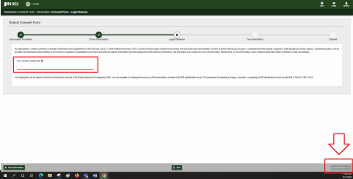
6. Documentation (Page 4 of 5): Once the release form has been signed, click the Documentation button in the bottom right corner to advance. Most educators can skip this section. Only minors or those who received a disqualification status on their background checks need to upload documentation. Please view the instructions below for additional guidance:
- Juvenile Educators will need their parents or legal guardians to submit a copy of the state background check through the Indiana State Police here. Once it's been uploaded, click Submit to proceed to the next page.
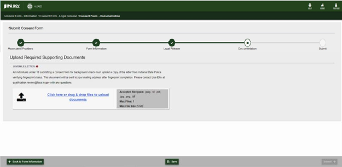
- Disqualified Educators will need to submit supporting documentation to dispute their disqualification. For examples of supported documents used to dispute disqualification, click Here for additional information. Once the documents have been uploaded, click Submit to proceed.
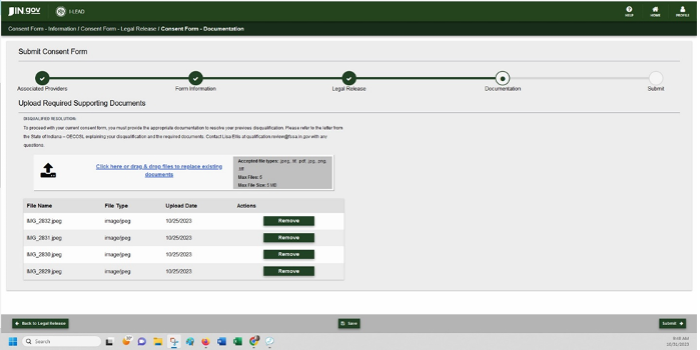
- All other Educators, skip this section. Click Submit to proceed.
7. Submit (Page 5 of 5): On the Submit screen, type your first and last name in the Electronic Signature box. Additionally, click on the I Agree To All Terms checkbox. For Juveniles, your parent or guardian will need to complete this section and sign on your behalf.
8. Finally, click the Submit button at the bottom of the page to turn in the consent form.
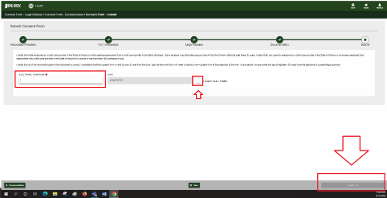
Submission Verification
If the consent form is submitted successfully, you will be redirected back to the I-LEAD Dashboard where the "Current consent form expires on MM/DD/YYYY... [the next fingerprint expiration date]".
Fingerprints are due at the start of employment, every 3 years and/or when someone’s name changes. As a result, the Begin Consent Form button is now available as a permanent feature on the I-LEAD Dashboard. If your legal name has changed, change your profile information before doing the consent forms with your new fingerprint number.
Note: I-LEAD accounts aren’t meant to be gifted or shared with anyone. Sharing I-LEAD accounts could result in lost training records or incorrect data on consent forms that could prevent or delay background check processing. If you submitted a consent form on someone else’s account by mistake, contact QualitySupport@fssa.in.gov or 1-800-299-1627 for technical support.
FAQs, Tips & Additional Information:
- Only 1 Applicant: Providers who try to add someone as an applicant for an educator type when there is already someone on the Associated Roster with the applicant status won’t be able to submit the educator invitation. Select Staff or Volunteer if the person won’t be submitting applications on behalf of the child care facility. If you have a new application for the facility, remove applicant status from the previous administrator on the roster before sending an educator invitation to the new applicant.
- Consent Form Renewal Requirements: Consent forms are submitted when the fingerprints are due. This means anyone doing their consent form will need their fingerprint receipt with them. Submitting a consent form gives OECOSL licensing permission to run the background checks and review the fingerprints needed to clear someone to work in child care.
- Fingerprint Renewal Requirements: Fingerprints are done through IdentoGo and must be renewed every 3 years. Consent forms won’t submit without the fingerprint information. Enter the Applicant TCN (minus the ‘i’) from your IdentoGo receipt (Ex: I123456789; only enter the 123456789 after the “i”) where it says Inkless Transaction Number. Those submitted with too many numbers or with the ‘i’ may generate a “Consent Form Submission Error” upon submission. If the number doesn’t look correct on the receipt, contact IdentoGo for verification.
- Consent Status for Providers: The educator’s Associated Providers page (first page of the consent form) should show all the licenses someone works for. If a license is missing, leave the consent form and ask the provider to send an educator invite to your email for the missing license(s). Then restart the consent form by clicking Begin Consent Form to get the new ones to show once the license shows on the Provider section of your I-LEAD Dashboard.
- Mobile Calendar: On Form Information, mobile users will have to use the calendar to accept their date of birth or previous addresses. When selecting a date on the drop-down calendar, click the Month at the top of the mobile calendar, then the Year to zoom out when selecting past years and dates. An exact date will have to be selected on the calendar.
- Missing Hire Dates/Educator Type: If you are unable to do a consent form due to missing hire dates/educator type, reach out to the provider admin. They will need to update this information on their associated educator roster for you to have access to a consent form afterward.
- Mailing Address: If the mailing address is the same as the person's home address above, then click the box indicated. Otherwise, enter the P.O. Box or alternate mailing address to receive mailing from.
- Previous Address Start Date: Start date means the date you moved into a property. (Date Format: MM/DD/YYYY)
- Previous Address End Date: End Date means the date you moved out of the property. Sometimes it is easier to work backwards by entering the End Date then counting the years backward since living at the address.
- Date Formats: All dates on I-LEAD and the forms must be entered as MM/DD/YYYY
- Remove Incomplete Previous Address Fields: Only add addresses you've lived somewhere else in the last 5 years. Note: Only select Add Address if you have information to input regarding your previous addresses. If this is selected but left blank, the form will not permit an individual to move onto Legal Release until the additional fields are completed or the fields are removed via Remove Address.
- International Past Residences: Past addresses entered should only be for those who lived in the United States; those who lived at an international address aren't required to record this information on the consent form. Click No when asked if you’ve lived elsewhere in the last 5 years if the only address available was an international address.
- Out-of-State Past Residences: Educators who lived in another state within the last 5 years may receive an email from the background checks department directing them to take additional steps to finalize the background checks needed to work in child care. Have them monitor email or reach out to outofstatechecks@fssa.in.gov to submit paperwork, giving licensing permission to run the background checks from another state. There may be more than one form attached to the email to fill out if an educator lived in multiple states within the past 5 years. All of them need to be completed and sent to outofstatechecks@fssa.in.gov for processing.
- Page Won't Progress Past Form Information: The Legal Release button will only light up if all fields are completed on Form Information. Any field that is incomplete will have a red line underneath it. (Note: If the home and cell phone numbers are the same, enter the same number in both fields.)
- Consent Form Submission Confirmation: The consent form is only submitted successfully when the educator reaches the final signature page and clicks Submit. Once submitted, the educator will be routed back to the I-LEAD home page and the counter at the top will reset, saying "Current fingerprints expire MM/DD/YYYY" and “Current consent form expires MM/DD/YYYY.”
- How Providers Monitor Consent Form Submissions: Providers will see a Submitted status on their associated educator roster for the license once the educator has successfully submitted the consent form. The statuses change in real time on the educator’s consent form submission. If an educator still has an N/A status, ask them to log back into their I-LEAD accounts and finish their consent form. (Note: If the N/A is the result of removing an educator and adding them back to generate a new consent form but the educator doesn’t have a Begin Consent Form button after accepting the invitation, contact 1-800-299-1627 for technical support.)
- When to Submit a Consent Form: New hires, those who receive new fingerprints within 90 days of the consent form expiring, those who completed fingerprints under a new legal name and those with Archived or Disqualified status will need to redo their consent forms on I-LEAD via the Begin Consent Form button. Those who have an Incomplete status will need to reach out to qualification.review@fssa.in.gov to verify the reason for their incomplete status, then redo their consent form (if applicable).
- Name Change After Consent Form Submission: Those who had a name change after submitting a consent form can redo their consent form after changing their profile first. Once the new consent form has been submitted via Begin Consent Form with the new name and fingerprint number, reach out to qualification.review@fssa.in.gov to alert them of the change and present supporting documents showing current and past legal name.
Note: Don’t remove and re-invite an existing educator to trigger a new consent form. This could create errors in the system that prevent the educator from submitting a consent form when it's due for renewal. If there are concerns about a consent form, contact 1-800-299-1627 for guidance.
Disclaimer: Federal law requires all states to implement state and federal criminal background checks that include fingerprints for child care providers. The comprehensive background check must include a fingerprint check of the Federal Bureau of Investigation (FBI) database to ensure providers do not have a history of convictions that could put children’s health and safety at risk. Notably, the FBI’s Criminal Justice Information System database may not include final dispositions for arrests listed on an individual’s rap sheet. Therefore, it’s critical that employers also conduct local criminal felony and misdemeanor checks to assess if an arrest listed on the FBI’s report resulted in a conviction. Additionally, potential child care providers must be checked to ensure they are not listed as a sex offender and have not been found to have committed child abuse or neglect.