
Managing Educator Consent Forms


Consent Form Statuses
Maintaining up-to-date staff consent forms in I-LEAD is crucial to stay in compliance with state licensing. Consent forms give licensing permission to run a background check and view the fingerprints necessary for a new employee to be cleared to work in a child care setting. Those awarded “Qualified” status are permitted to work at the child care program until their consent form expires. Provider admins should monitor and manage staff consent forms on the Provider Details page of each license.
When to Submit Consent Forms:
Consent forms are due whenever fingerprints are due, typically when someone is invited to a program through an educator invitation or every three years when their fingerprints expire on I-LEAD. Fingerprints must be included in the consent form on I-LEAD for licensing to receive a copy. Providers can click View Consent Form to view when the fingerprints are due for renewal.
Managing Staff Consent Forms & Fingerprints:
- Fingerprints are a required field on the consent form. Submitting the consent form with this information gives the state permission to process background checks for the child care program and view the fingerprints in the system.
- Provider admins who accepted their admin invitation are the only ones who can invite staff to their license and access the Associated Educator Roster.
- To add your fingerprints to the consent form, enter the nine-digit Applicant TCN (minus the ‘i’) to the Inkless Transaction Number section (Form Information; Page 2 of 5) of the electronic consent form on I-LEAD.
- If you don’t have access to your IdentoGO receipt and/or Applicant TCN, contact IdentoGO to request it by phone, or if there’s a recent consent form on file, email qualification.reivew@fssa.in.gov to request the fingerprint Applicant TCN.
- Providers who want to request the transfer of a consent form from one of their own licenses or another site should send an educator invitation[GU2] to the new hire and have them accept the invitation[GU3] . Once the staff member is listed as “N/A” on the roster, please fill out this request for consent transfer form.
- Note: Consent transfers only work if the consent form is still in the system. If the background check department cannot find consent information, the educator must complete a new consent form with their most recent fingerprints to be connected to the new license.
- If you cannot retrieve a copy of your information or have expired fingerprints, you need to reschedule a fingerprint appointment before completing the consent form.
- If you lived outside Indiana in the last five years, contact outofstatechecks@fssa.in.gov to submit paperwork giving licensing permission to run the background checks from another state.
- Staff who no longer work for your child care facility should be taken off the Associated Educator roster via the Remove button; you can indicate they no longer work there and show their last day (Format: MM/DD/YYYY).
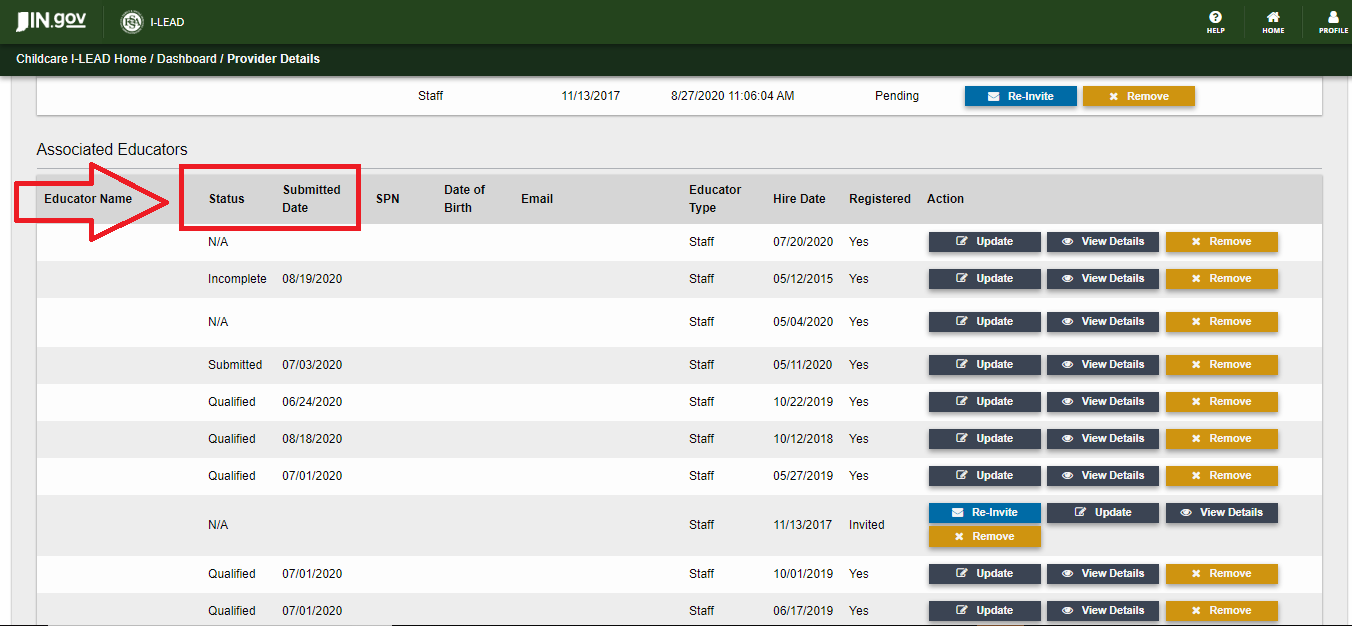
- The expiration date on an educator’s account is estimated based on when the consent form was last submitted. To view when fingerprints are due for renewal, educators can click View Consent Form from their I-LEAD Dashboard. Provider admins can click View Details on the Associated Educator roster next to the person’s name to see the fingerprint expiration date. Those with an “N/A” did not submit fingerprints with their last consent form. Redo the consent form by entering the nine-digit Applicant TCN (minus the ‘i’) from the fingerprint receipt given by IdentoGO.
Accessing the Associated Educator Roster for a License:
- Log in to I-LEAD..
- Scroll down to your Provider section on the I-LEAD Dashboard.
- Click View Details next to the license roster you wish to see. Each View Details button is unique to that license.
- Scroll to Associated Educators on the Provider Details page. This roster shows all educators who are connected to and accepted their invitations for this particular license. Those with N/A still need to do a consent form; those who have turned one in may have a variety of different statuses. To understand the status of each consent form, view the status definitions below.
Consent Form Status Definitions: (Click Each for More Information)
Warning: Each I-LEAD user needs their own email address that isn’t shared with anyone else. I-LEAD accounts are not meant to be shared or gifted as they contain personal information and training unique to each user. Failure to follow this rule could result in tangled accounts and incorrect data on consent forms that cannot be easily reversed in the I-LEAD system. If a consent form was submitted under the wrong account, there are duplicate consent forms or the information on the consent form is incorrect, please contact the OECOSL Child Care Support Line at 1.800.299.1627 for guidance or technical assistance. Adding Educators:
Invited Educators Section: An educator who was was sent an educator invitation by the provider admin is listed in this section until they accept their invitation. If they are not on the Invited Educator section or the Associated Educator roster, send them an educator invitation.
Removing/Editing Educators: Removing Staff: Remove educators who no longer work for your child care program from the Associated Educator roster immediately after termination. To do this:
If successful, they will be removed from the Associated Educator roster immediately and no longer employed at your child care program. 
Notes:


|
Disclaimer: Federal law requires all states to implement state and federal criminal background checks that include fingerprints for child care providers. The comprehensive background check must include a fingerprint check of the Federal Bureau of Investigation (FBI) database to ensure that providers do not have a history of convictions that could put children’s health and safety at risk. Notably, the FBI’s Criminal Justice Information System database may not include final dispositions for arrests listed on an individual’s rap sheet. Therefore, it is critical that employers also conduct local criminal felony and misdemeanor checks to assess if an arrest listed on the FBI’s report resulted in a conviction. Additionally, employers must check to ensure a potential educator is not listed as a sex offender or found to have committed child neglect or abuse.