
Absences
The attendance section of the provider payment portal (PPP) is accessible through I-LEAD by clicking on the Attendance and Voucher Info tile. The portal is used to manage and submit attendance for all children with active vouchers at the child care program. Provider admins can update and submit attendance and absences and view or add closure dates for the child care program. To receive voucher payments on time, attendance should be submitted within two weeks of the end of each service period. The deadline is Saturday at midnight. Providers should verify their vouchers weekly to be sure they are only providing care to children with active vouchers assigned to their program.
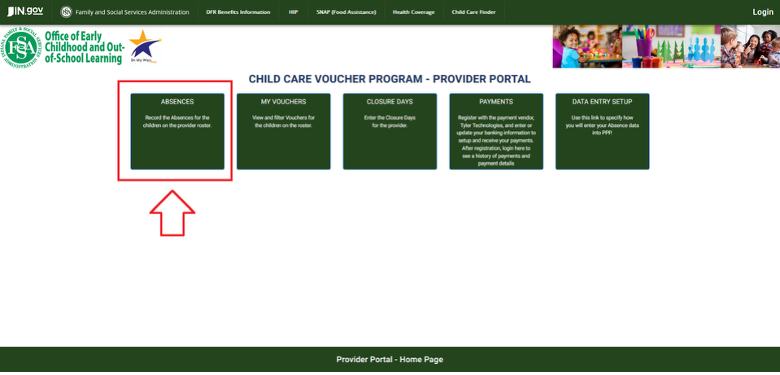
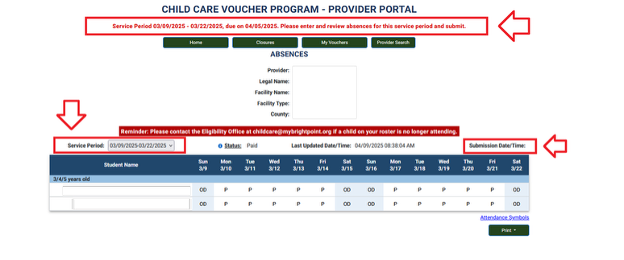
Page Layout
Provider: If a provider admin is assigned to more than one program, there will be a drop-down list of active licenses to view and submit absences. Note: Each time a new license is added, the provider admin will need to register the new license with the payment vendor and complete new direct deposit forms (no information transfers from another license) and submit provider forms to the eligibility office to add all children to the new site.
Legal Name: The business name or name of the licensee.
Facility Name: The legal name of the child care facility connected to the license number listed in the Provider section.
Facility Type: The type of license for the facility.
County: The county the selected child care program is located.
Reminder: Contact information for the local eligibility office.
Service Period: The attendance period the provider is viewing. Different services periods can be accessed using the drop down menu. Service periods must be submitted from oldest to newest. There will not be a submit button showing if the previous period has not been submitted.
The service period should automatically display as the oldest period that has not been submitted. If there’s a week that was missed, the header at the top of the page will read:
“Service Period (MM/DD/YYYY) - (MM/DD/YYYY) due on (MM/DD/YYYY). Please enter and review absences for this service period and submit.”
Status: The last action related to the license and selected service period. Statuses include the following:
- Saved: The application saved the most recent changes.
- Submitted: The application was turned in with codes listed for each child.
- Payment Cycle: The service period selected has been processed on the payment processing date. This will show even if payment was not able to be made.
Paid: A payment went out on the scheduled pay period corresponding to the service period submitted.
Last Update Date/Time: The last time an action related to the absence roster codes were changed and saved.
Note: This only shows saved changes.
Submission Date/Time: Submission date (MM/DD/YYYY) and time for attendance in the selected service period. Providers have 14 days to submit a service period after it is completed, to receive payment on time. The state pays one missed submission period as a grace payment. If a provider misses two or more submissions in a row, then payments are held until ALL attendance periods are caught up.
Note: If the date and time in this section are blank, attendance for the selected service period was not submitted. Those who don’t submit absences on time are subject to missed payments until attendance is submitted. If absences are submitted late, the missed payment(s) will be added to the next scheduled payment cycle. For a list of common issues that prevent submitting absences, see the Tips section below.
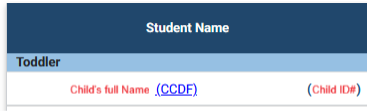
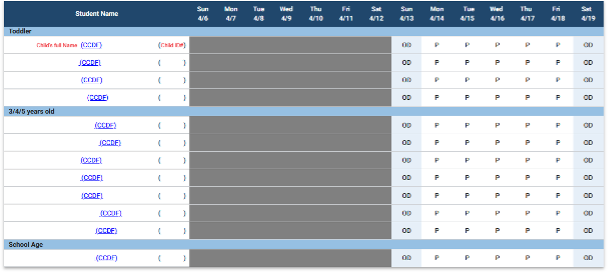
Student Name: Shows the names and age groups of all children on a voucher. When a child’s voucher is approved, the child will appear in this section with a Child ID next to their name. Clicking on the child’s name will pull up details about the child’s voucher, renewal date, a list of absences and whether they have a medical exemption. For those who are submitting attendance through a CCMS, the Child ID from this section will be required and they will not be able to successfully submit attendance without them. Attendance entered on the CCMS will be transferred to I-LEAD for payment once it has been submitted.
Attendance Symbols: Show what each of the absence codes represent. Children will automatically be defaulted to have a “P” for present Mon.-Fri., and “OD” for Off Day on Sat. and Sun. If this is not correct, then this will need to be updated before the provider submits attendance for that period. Provider admins will need to click on the correct date next to each child and switch the code to either Absence or Off Day. If the program is closed for the day, they will need to enter closures on the Closures tab, not on the Absences page.
Print: Providers may choose to print off copies of the listed service period to keep for their records, but this is not required. A separate back up method is always required (through a CCMS, electronic tracking system or paper attendance, and it will require a parent signature at least weekly.
Save: Saves changes made to the roster during the selected service period. Admins can update and save as many times as they choose until they have actually submitted attendance. Once they submit then that period will be locked.
Submit: The submit button will only appear for this service period if all previous service periods were submitted and if the Data Entry Setup is set to a current date for PPP. It will only offer Save and Print buttons otherwise. If everything is accurate, click Submit. Once the Submit button is selected, the service period is locked and the provider cannot make any additional changes. If there is an error, contact your Policy Consultant.
Note: If the Submission Date/Time is blank after submitting, or if the button is missing, see the Tips listed below.
Tips for Submitting the Service Period:
Check the following to see if anything is preventing your ability to submit absences on the I-LEAD portal:
- Screen Timed-Out: The PPP system will automatically log out users 1 hour after they log in, even if they are still actively using the system at that time. There are no error messages, and the system appears to still be functioning, but will not save any changes. Users should save often while making updates. If they do get timed out, they will need to log back in and return to the portal to view or change and save any information since the last save.
- Change Browsers: Microsoft Edge or Safari browsers are known to have issues with submissions. We recommend switching to either Mozilla Firefox or Google Chrome instead. For best performance, use Mozilla Firefox.
- Cookies and Cached Images: Clear cookies and cached images as these can also affect the ability to submit. Cookies and cached images clutter up certain websites and sometimes prevent certain buttons from working properly. For information on how to clear out the information by type, see https://its.uiowa.edu/support/article/719.
- Common Mobile Issues: Mobile users might experience issues where parts of the screen are cut off. Turn the device on its side to enable landscape mode for the Print, Save and Submit buttons to appear. If that doesn’t work, switch to a desktop version.
- Check License Selection: Verify you’ve selected the right license in the provider drop-down at the top of the page. If a license is missing from your drop down menu: 1. Check to see if you are listed as an Admin in I-LEAD for this license. If not, the program will need to send an invite to connect your account with this license. 2. Check with your licensing consultant to verify if the license is active in I-LEAD and you have submitted a W-9. If there’s still an issue after you’ve registered your program, contact paymentquestions@fssa.in.gov for assistance.
- Submit Previous Service Periods First: Verify all previous service periods have been completed.
Note: If a previous service period submission is missing, submit that first. If the service period hasn’t been submitted yet because of missing or incorrect data for a child, submit what you have, then reach out to paymentquestions@fssa.in.gov for assistance.
- Check Codes and Service Period: Verify the two-week period has the correct codes for all children before submitting. If any codes are missing and you have not reached the end of an active service period, wait until the end of the service period for the option Submit to appear. Programs have two (2) weeks to submit after the service period is complete.
- You Have a Child Care Management Systems (CCMS): Providers who have a subscription with compatible CCMS programs (Brightwheel, Playground or Alliance Core through Early Learning Ventures) and opted to submit attendance through their CCMS app will need to synchronize I-LEAD so attendance can be submitted on the app. If providers set their Data Entry Setup to anything other than PPP (Parent Provider Portal), provider admins will only have a Save button on absences instead of a Submit button because the portal will be in Read Only mode. The child roster on the Absence section and the CCMS app must be identical with the same number of children and have the correct Child ID from the absence roster listed for the child on the CCMS app. Once attendance is submitted through the CCMS, I-LEAD will update to reflect the submission status within 24 hours of submission. If there are any issues with the CCMS, provider admins will need to contact their CCMS vendor for guidance on how to edit a child’s information or submit their roster.
Note: Programs cannot change their data entry method for a past or present date (they can only select a future date). All previous periods must still be submitted with the method that was selected for that period. If all these conditions have been met and there’s still an issue, please reach out to paymentquestions@fssa.in.gov for guidance.
- Set Account to PPP Data Entry Setup: If you don’t have a CCMS that you want to submit attendance through, check to make sure the Data Entry Setup is set to PPP. If it’s set to anything other than PPP and you want to submit on I-LEAD, you will need to contact your policy consultant or reach out to paymentquestions@fssa.in.gov for support.
Note: Only future service periods can be selected when setting up a CCMS or PPP. If the PPP date won’t let you select a past date so you can submit your current attendance, reach out to paymentquestions@fssa.in.gov for support.
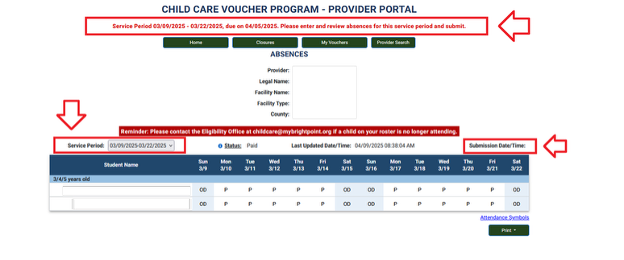
Successful Submission of Absence Service Period:
If successfully submitted, the status will update to “Submitted” and changes should show on the screen after you refresh the browser. If you still have a notification at the top prompting for previous service periods, submit those first. If the Submit
button is missing or not working, check the above tips for guidance. If a week was missed, the header at the top of the page will read:
“Service Period (MM/DD/YYYY) - (MM/DD/YYYY) due on (MM/DD/YYYY). Please enter and review absences for this service period and submit.”
Removing Children/ Correcting Service Period Codes After Submission:
If the wrong closure date or attendance code was submitted on a service period and you have already submitted the service period, fill out the Roster Clean Up form to update any incorrect information on your absences or reach out to your policy consultant to correct your absences.
The Roster Clean Up form should be used to:
- Remove children who never started or have disenrolled (last date attended must be indicated).
- Request recoupment of improper payments.
- Report a temporary gap in child care (more than 2 consecutive weeks).
- Change a child’s start date.
- Correct absences recorded in error.
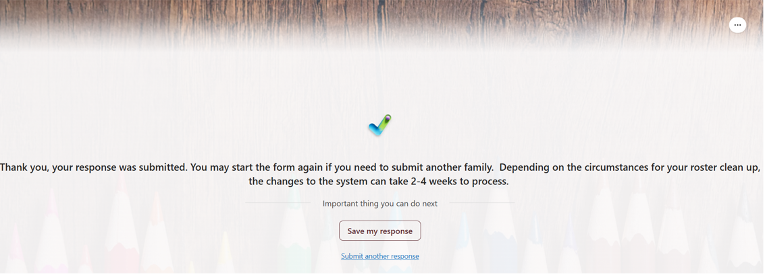
Note: If the form is successfully submitted, you should receive the screen shown below. Provider admins need to submit corrections within sixty (60) calendar days of the service period. If a child is listed on the current service period and needs to be removed, submit the absences, then submit the form immediately so there’s enough time to correct the changes before a payment processes. Incorrect codes or children who are left on the roster could result in a recoupment of payments.
Missing Children: If a child is missing from the roster, check to see what the start date is for a future voucher listed under My Voucher. The start date must be indicated on the provider form when submitted to the eligibility office.
Grayed Out Dates: If the beginning of the week or the end of the week features a gray bar for a new or leaving child, this indicates the child is being added or removed in the middle of the service period and only have vouchers for one (1) of those weeks. If there are any concerns regarding changes to a child’s voucher, provider admins will need to reach out to a CCDF policy consultant for guidance.
Note: Children are normally added or removed for future service periods. If there is an issue with a child’s voucher, the child care provider may need to reach out to either their CCDF policy consultant or paymentquestions@fssa.in.gov for guidance.
Need Additional Help?
Contact the OECOSL Child Care Support Line at 1.800.299.1627 or email Qualitysupport@fssa.in.gov for assistance.
Disclaimer: It is the provider's responsibility to check their vouchers in the provider portal every week and report any discrepancies to avoid improper payments. If a provider is paid for a child who is not enrolled/attending, these payments should be reported to the state as soon as possible, and a recoupment will be processed if the provider still has current vouchers. If the provider does not have any current vouchers, the provider will be responsible for mailing a check to the state and will receive instructions from their policy consultant.