
Inviting Staff

Provider admins need to add their staff to their educator roster so they can keep track of their staff’s mandatory training and consent forms for background checks and fingerprinting. Follow the instructions below to add an educator to your child care facility. Send the educator an invitation for each of their work locations.

| Warning: Each I-LEAD user needs their own email address that is not shared with anyone else. I-LEAD accounts are not meant to be shared or gifted as they contain personal information and training unique to each user. Failure to follow this rule could result in tangled accounts and incorrect data on consent forms that cannot be reversed. |
Types of Invites & Functions:
Admin Invitations: An admin invitation gives an educator on I-LEAD access to the same licensing and consent information to which the current provider admin has access. If a provider has multiple email addresses from which they wish to access the licenses, send them an admin invitation to each email address. Those who accept provider admin invitations have Manager View on Indiana Learning Paths to view and pull completed training certificates for their staff.
Educator Invitations: An educator invitation connects a new hire’s I-LEAD account to a specific license so they receive a consent form for that location. Consent forms are due anytime fingerprints are due, which is usually when someone is invited to a new site or every three years. Educators must receive and accept an educator invitation from each facility where they work to connect their account to the locations and receive the consent form. If an educator plans to work at multiple locations, it is best to accept invitations for all facilities first and complete one consent form. If an educator accepts an invitation and completes a consent form for one location before accepting invitations for other locations, they must do separate consent forms for each. Only one applicant is permitted on the Associated Educator roster; before inviting someone with this role, all previous educator types on the roster should be set to a different educator type. Trying to send an educator invitation to someone who is already on the roster as “Applicant” could prevent the educator invitation or the renewal application from submitting.
3 Ways to Send Educator Invites:
(Click the button of each title to be directed to that support article)
1.) Manage Educators Button- Click this option if you have multiple Educator(s) who need consent forms and invites for multiple child care sites.
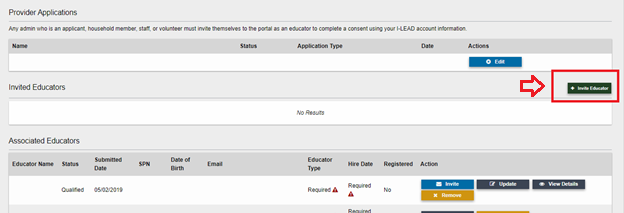
2.) +Invite Educators Button: Click this option if you have one child care site to which you wish to invite educator(s) for consent forms.
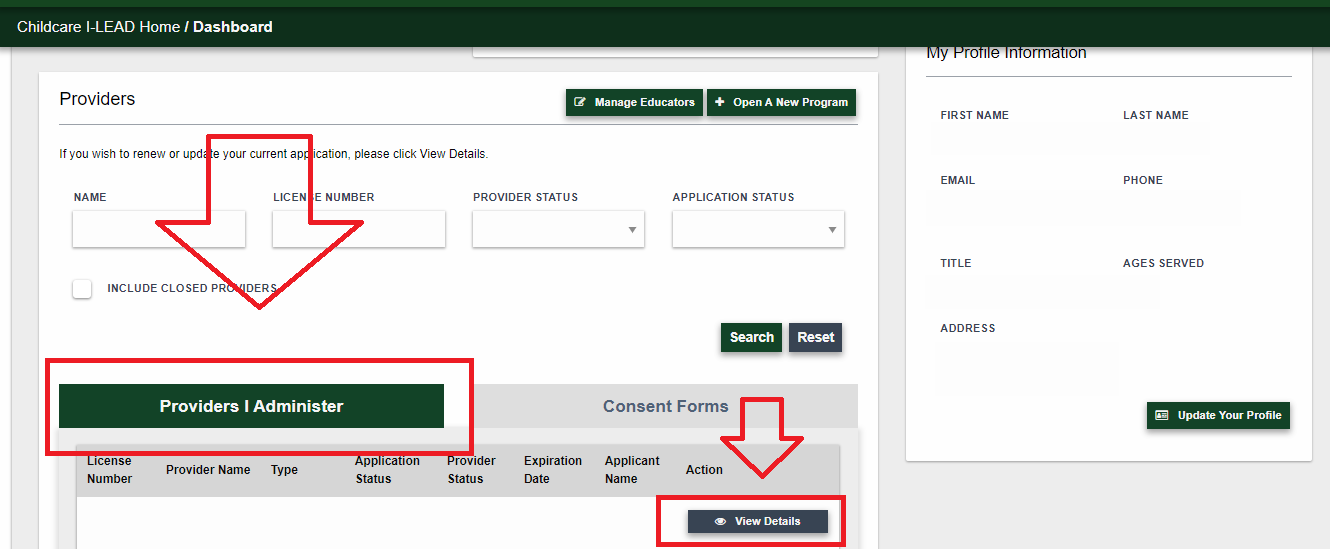
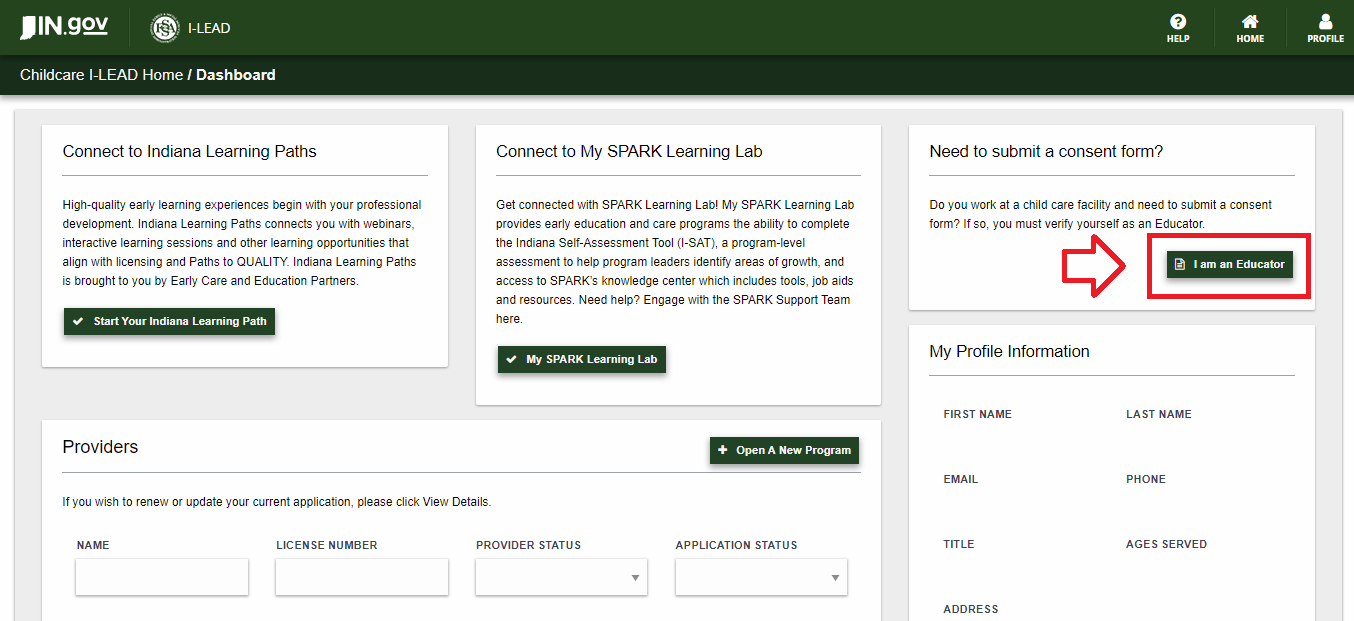
3.) I am an Educator button: Educators can create new I-LEAD accounts to merge with records from previous I-LEAD accounts or connect with past consent records submitted by the consultant/previous child care facility for existing I-LEAD accounts. An educator who merges their records will not need an educator invitation if the license shows in the Providers section once records are merged. To see if your educator(s) should merge instead of receiving an invitation, check your Associated Educator roster via the View Details button of that license. If they are listed but have a "No" or "Invited" status under Registered, direct them to merge when they log into I-LEAD. Those who see this page and have an invitation from no_reply_i-lead@www.in.gov need to retry logging in from their invitation, as the invitation process was disrupted. The invitation must be accepted within 72 hours and completed from start to finish on a single device.
If an educator is listed on the Associated Educators roster as Registered “No,” but there is no merge button, there are issues accepting the educator invitation or they receive an error message logging in from the invitation, contact 1.800.299.1627 for support.
| Staff must complete their consent forms as soon as they accept their invitations so they can begin working in a child care setting. They also need to submit a copy of their fingerprint receipt from IdentoGo to qualification.review@fssa.in.gov for processing. |