
Advanced Tool to Manage Educators for Multiple Site Locations

On a provider administrator’s profile, the Manager Educators button is available on the I-LEAD Dashboard. This tool is available to send invitations via email to educators at multiple child care sites. This will connect them to each location's roster and give them a consent form specific to that location. The tool can also be used to associate an existing educator on one of the staff rosters to a license they were added to previously. Educators need to be connected to all child care programs before they attempt to complete a consent form.

Warning: Please thoroughly check to ensure the information entered into the invite has the educator's correct legal name and personal information. Once an invite has been accepted by the educator and their personal information has been entered on the consent form, it can't be edited or reversed.
Inviting Staff via Managed Educators
Provider admins should follow the steps below to invite an educator using this feature:
1. Login into your administrator account on ilead.in.gov
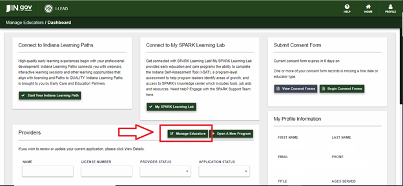
2. Click the Manage Educators button
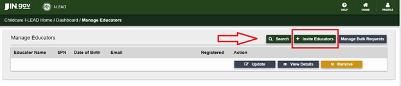
3. Click the +Invite Educators button.
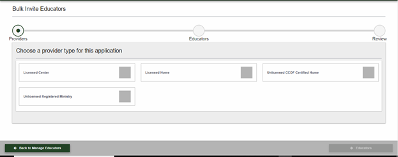
4. Select the program type you wish to submit email invites for. Note: If you own multiple types of programs (center, homes, ministries, etc.) you can only submit one program type at a time.
5. Click Yes if you want to send invites to all sites of a program type.
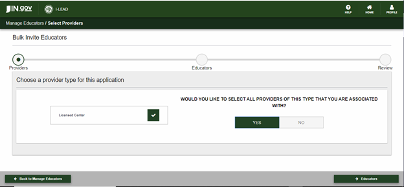
Click No to select only the specific sites you wish to send to. You may need to scroll down to click the Checkbox to add the license or remove any site that shouldn’t be associated with the educator.
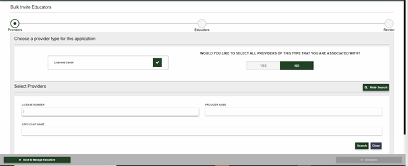
6. Click Educators at the bottom right of the page to continue after selecting the license(s) which should be connected to the educator(s).
7. Search for Educators or Add New Educators:
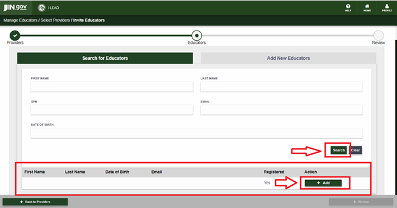
- Search for Educator will automatically be available for an existing educator listed on one of the associated educators rosters. Search for educators offers 3 ways to connect an educator from one of your existing license(s):
- Search by Name and DOB: Enter the person's first name, last name and date of birth. The name on the I-LEAD account and the invitation need to match what's on the person's legal ID. If you find them under a previous legal name, direct the educator to temporarily switch their name back to their former name in their profile. Once they accept the invitation, they can change their profile to their new legal name and complete the consent form. Once the consent has a qualified status, the name will change automatically on the roster.
- Search by Email: If an educator completed consent forms at another child care facility and still has access to the same email they use to login to their I-LEAD accounts, they can sometimes be searched by their email alone. Verify the correct email and click Lookup or Search.
- Search by SPN: If an educator completed a consent form at a different site, they should have been assigned an SPN on the license(s) associated educator roster. Enter the 8-digit SPN for the system to locate their information and prompt an +Add button to connect them to the other licenses.
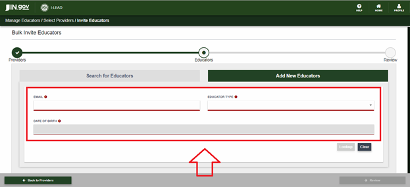
- Add New Educator: For new staff who have never been connected to any of your licenses before, switch the box from Search for Educators to the Add New Educator. You will need the educator's email they used to create their I-LEAD account with, date of birth and their educator type first. Click Lookup to prompt a section to enter their legal first and last name. Hire date (MM/DD/YYYY) will usually be the same day you’re sending them to the invitation. Once the information is listed correctly, click Invite Educator to add them to the list of educators you’re connecting to the license(s).
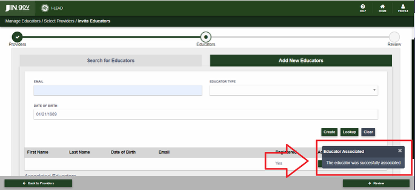
8. Any educator who is successfully found or created should appear at the bottom of the page. If you searched for an existing educator, click +Add to add them to the bottom of the page. For those whose invites you created, when you click Invite Educator, the educator will appear at the bottom of the page with an Update & Remove button next to your educator's name if the invite was created successfully. When added to the list of educators who need invitations, there will also be a gray box that comes up in the bottom right corner that says "Educator Associated: The educator was successfully associated."
9. For multiple educators who need invitations, repeat steps 1-8 for each educator you’re adding to the selected child care site(s). Once they've all been added to the license(s), skip to step 10 to finalize the invitation process.
10. Click Review to see which educator(s) got an invitation for which sites.
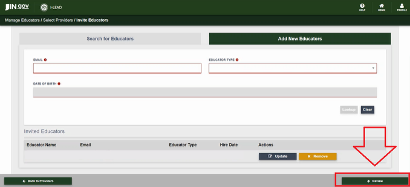
11. Click Submit to send the invitation(s) to the listed educator(s).
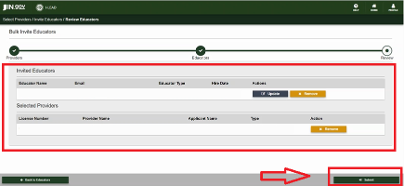
The invitations will only be sent to the educators' emails after steps 10 and 11 are completed.
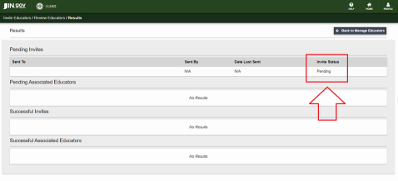
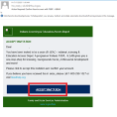
If the Invitation was submitted successfully, the educators who were invited will show on your admin page as Pending. To view this, click Home, then View Details for the site you wish to check. Scroll down to the Invited Educators section just above the Associated Educators roster. If they received the invitation in their email, it will show them as Pending. The invitations expire in 72 hours due to security purposes. If the educator requires a new invitation, please click Re-Invite to make any corrections to their information and send the educator a new invitation to login from. Below is a copy of the no_reply_i-lead@www.in.gov email educators receive and need to accept in order to get their consent forms. Providers should also get a Bulk Invite Request email from no_reply_i-lead@www.in.gov if it was sent successfully.
Note: Only users with provider admin accounts are able to invite educators to their child care program. Provider admins, remember to add yourself to the Associated Educator roster so you have access to your consent forms, too.