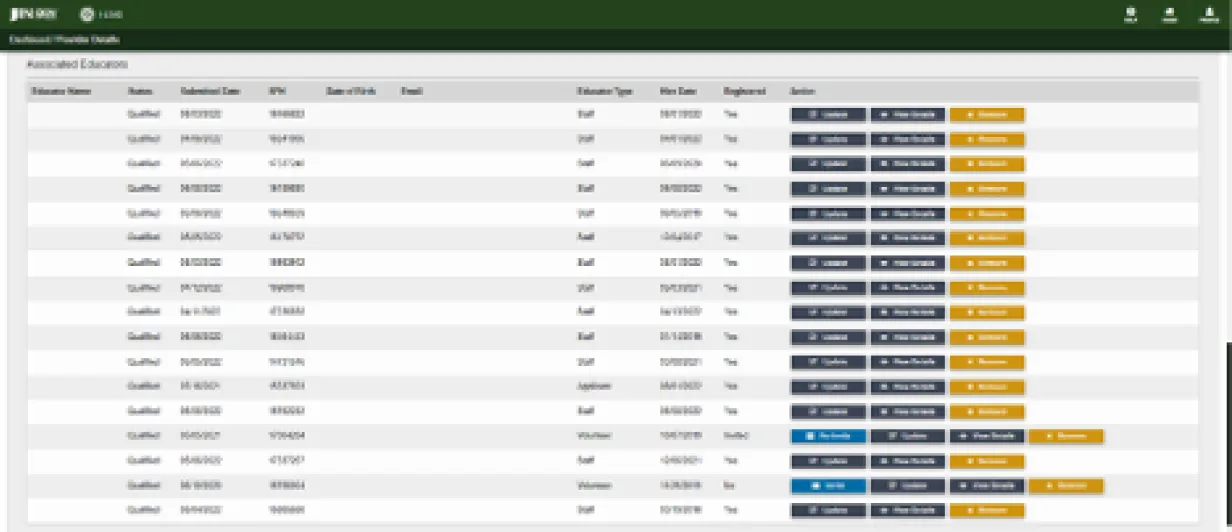
Educator NamesThe legal name of the educator as submitted on the educator invitation or updated with the last consent form. Educators need to update their profile on the I-LEAD account they own before they submit a consent form to accurately reflect new information in the system.
Status
The status of the last consent form. To view information about each status, check out managing educator consent forms.
Submitted Date
Used to determine if an educator's consent form is current or needs to be renewed. This shows the date of the last submitted consent form. Consent forms are due annually and exactly a year from the last submitted consent form. To see if an educator's consent form has expired, click View Details on the same line for more information.
SPN
When an educator accepts an invitation and completes a consent form for a license using their SSN, they're assigned a SPN number. This number can be used by providers who have multiple licenses via the Search for Educators feature when sending educator invites to automatically connect a registered educator from another license they own to a new license so they can be connected and do a new consent form to be cleared to work at both locations.
Date of Birth
This shows the date of birth of the educator who accepted the invitation. The date of birth is what was listed on the last educator invitation sent by the provider and on the last consent form uploaded from the educator's account. If there's an error with this section, click View Details to see if anything else is incorrect. Contact the OECOSL Child Care Support Line if this needs changed.
Email
This shows the email the educator last used to submit a consent form on I-LEAD.
Educator Type
This shows what the educator's role in the child care program is. The four educator types are:
- Volunteer: Unpaid staff assisting with child care program for educational purposes
- Staff: Anyone paid by the child care program to assist with child care services
- Applicant: Title given to those who manage staff and child care operations. Selecting this option will trigger an email invitation that gives access to licensing paperwork and staff consent forms. This also provides access to a Manager view on Indiana Learning Paths to pull employee training records and certificates. The applicant who signs the attestation paper must also sign the application.
- Household Members: Anyone living in the home where the child care program is operated
If someone's role changes within the organization, it can be easily updated via the Update button next to the person's name.
Hire Date
The date an educator was hired.
Registered
This shows whether the educator was successfully able to accept their educator invitation and connect their account to the license to get a consent form. Those who were successful will have a Yes in this section. Clicking View Details will show through which emails in the Registered Users section. Those listed with a No or Invited were likely paper consent forms uploaded by the consultant before the system switched to electronic-only. Rather than send them a new invite, have the educator merge their records to get a new consent form (if due for consent renewal).
Action
This section includes buttons to manage staff. There are 4 buttons:
- Update an existing employee’s Educator Type and/or Hire Date.
- View Details about what email(s) a person is registered under, what licenses they're connected to and when a consent was submitted and expires
- Remove enter a termination date for employees who no longer work for your agency, which removes the individual from the facility educator listing. Use the MM/DD/YYYY format to remove them. Those missing a hire date and educator type will need that added before they can be removed or do their consent form
- Invite/Re-Invite is usually only available for those whose past consent forms were uploaded by the consultant before the system switched to electronic-only consent forms. Rather than send them a new invite, have the educator merge their records. If someone is listed multiple times on the roster, call the OECOSL Child Care Support Line at 1-800-299-1627 for technical support assistance. The educator is likely a duplicate educator and needs a tech support ticket submitted for a manual merge of records.